
Last checked October 2, 2026 · How-to guide, no sponsored links
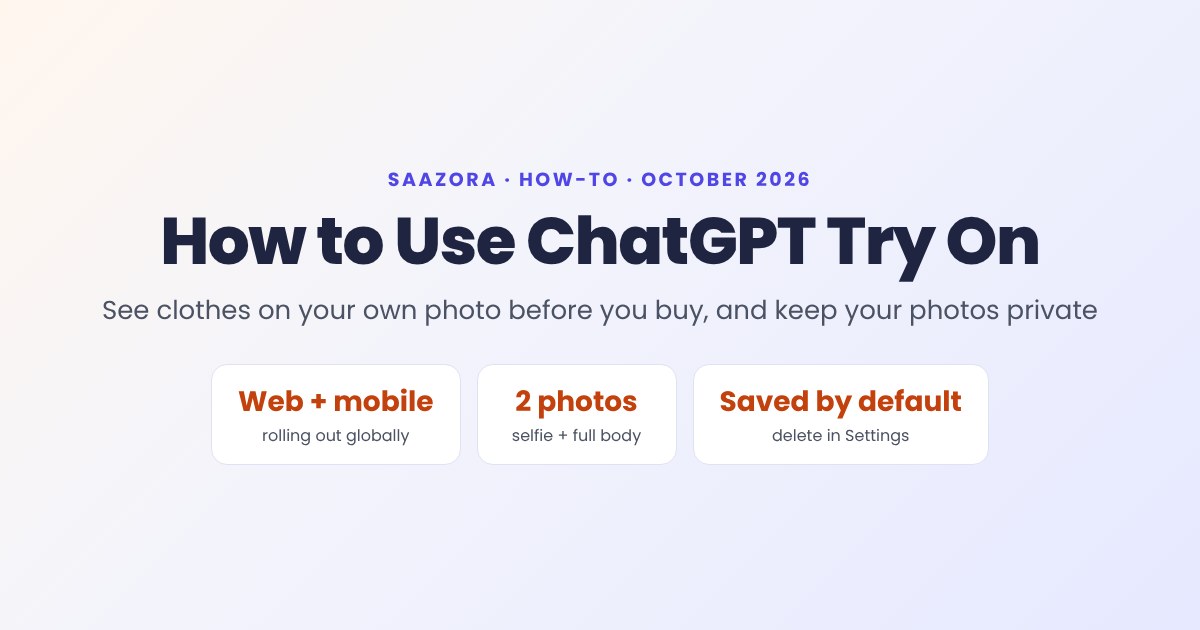
ChatGPT can now show you wearing a jacket, a dress or a pair of shoes before you buy them. OpenAI started rolling out the feature, called Try On, on October 1, 2026. It runs on the ChatGPT Images 2.5 model and works in ChatGPT on the web and in the mobile apps. This guide covers how to use ChatGPT Try On, how to try on items from any online store, and the two privacy settings you should check before you upload a photo of yourself.
Before you start
- Update the app. Try On is rolling out gradually worldwide. If you do not see it yet, update ChatGPT on iOS or Android, or reload the web app, and check again in a few days.
- Prepare two photos: a clear selfie and a full-body photo. Good light, a plain background and fitted clothing give the model a better outline of your body.
- Decide where your photos go. Read the privacy section below first. ChatGPT keeps your photos after the first try-on unless you delete them.
Launch coverage describes a global rollout on web and mobile and does not mention a paid-plan requirement. OpenAI has not published usage limits for Try On, so heavy use may run into ChatGPT's normal image generation limits.
How to use ChatGPT Try On, step by step
- Ask ChatGPT for an item. Be specific: "a navy rain jacket under $150 for city commuting" gets better shopping results than "a jacket."
- Tap Try On. The button appears next to clothing and accessories in ChatGPT's shopping results.
- Add your photos. The first time, ChatGPT asks you to upload or take a selfie and a full-body photo. It saves them as reference photos so later try-ons are faster.
- Review the result. ChatGPT generates an image of you wearing the item. Ask for changes in plain language, such as "show it with dark jeans" or "try the beige version."
- Save what you like. Save products and try-on images to Favorites, or sort them into folders in your ChatGPT Library to compare later.
Try on clothes from any store, not just ChatGPT's picks
You are not limited to what ChatGPT recommends. According to Android Headlines, you can:
- Paste a product link from an online store into the chat.
- Upload a screenshot of an item from a shopping app or social post.
- Share a photo of an outfit you like, for example a celebrity look, and ask ChatGPT to find similar items you can buy and try them on you.
Then ask for a try-on directly in the conversation. This is useful when you have already found something and just want to see it on yourself before checking out.
Prompts that work well
- "Try this on me and show the front and side."
- "Compare these three coats on me side by side."
- "Build two work outfits around this blazer using items from my Favorites."
Two privacy settings to check first
Android Headlines reports that "ChatGPT saves your reference photos by default" and that uploads from personal accounts are used for AI training unless you opt out. If that bothers you, change two things:
- Delete saved photos: go to Settings → Personalization → Reference photos and remove them. You can do this after each session if you prefer not to keep them stored.
- Opt out of training: go to Settings → Data controls and turn off "Improve the model for everyone." This covers your chats and uploads in general, not just Try On.
One more habit helps: avoid photos that include other people, house numbers or anything else that shows where you live.
What the try-on image will not tell you
- Whether a color works with your skin tone and hair
- Overall style and silhouette
- Comparing two or three options side by side
- Building outfits from items you already like
- Fit, length and size: check the store's size chart
- Fabric feel, stretch and drape
- Exact color under real light
- Return terms: read the merchant's policy
Try On creates an AI image. It is a good way to judge color, style and whether two pieces go together. It cannot tell you whether something will fit. OpenAI itself tells users to check the merchant's size chart and return policy before buying. Fabric stretch, length and how a garment hangs on your body are all things the image may get wrong.
A practical approach: use Try On to narrow ten options down to two, then buy from a store with free returns, or try the final pick in person.
How it compares with Google's try-on
Google has offered virtual try-on in its Shopping results in the U.S. since 2025, and also built it into a separate app called Doppl. The main difference is where you start. Google's version lives inside Google Shopping. ChatGPT's lives inside a conversation, so you can describe what you want, paste links from any store and ask follow-up questions in one place. Neither one solves the fit problem.
For more news on AI features that change how you shop and work, see our SaaS News section.
ChatGPT Try On FAQ
Is ChatGPT Try On free?
Launch coverage describes a worldwide rollout on web and mobile and does not mention a paid plan requirement. OpenAI has not published separate limits, so free users may hit ChatGPT's normal image generation limits sooner than paid users.
Why don't I see the Try On button?
The feature is rolling out gradually from October 1, 2026. Update the ChatGPT app or reload the web version. The button only appears next to clothing and accessories in shopping results.
Does ChatGPT keep my photos?
Yes, by default. ChatGPT saves your reference photos to speed up future try-ons. You can delete them under Settings, then Personalization, then Reference photos, and opt out of model training under Data controls.
Can I try on clothes from Amazon or other stores?
Yes. You can paste a product link or upload a screenshot from any online store and ask ChatGPT to show the item on you. Check that store's size chart and return policy before you buy.
Is ChatGPT Try On accurate for sizing?
No. The image shows how an item might look, not how it fits. OpenAI advises checking the merchant's size chart and return policy before ordering.
How we wrote this guide
We based the steps on OpenAI's October 1, 2026 release notes as reported by PYMNTS, Android Headlines and Digital Trends. The feature was still rolling out when we wrote this, so the images in this guide are diagrams, not screenshots of the app. Menu names can differ slightly between the web, iOS and Android apps.
Sources (opened October 2, 2026): Android Headlines (Oct 2, 2026) · PYMNTS (Oct 2026) · Digital Trends (Oct 2026) · OpenAI ChatGPT release notes