
Last checked October 16, 2026 · Research-based guide, not hands-on testing
Saazora may earn a commission if you sign up for Taplio through links on this page, at no extra cost to you. We have no affiliate deal with any other tool named here.
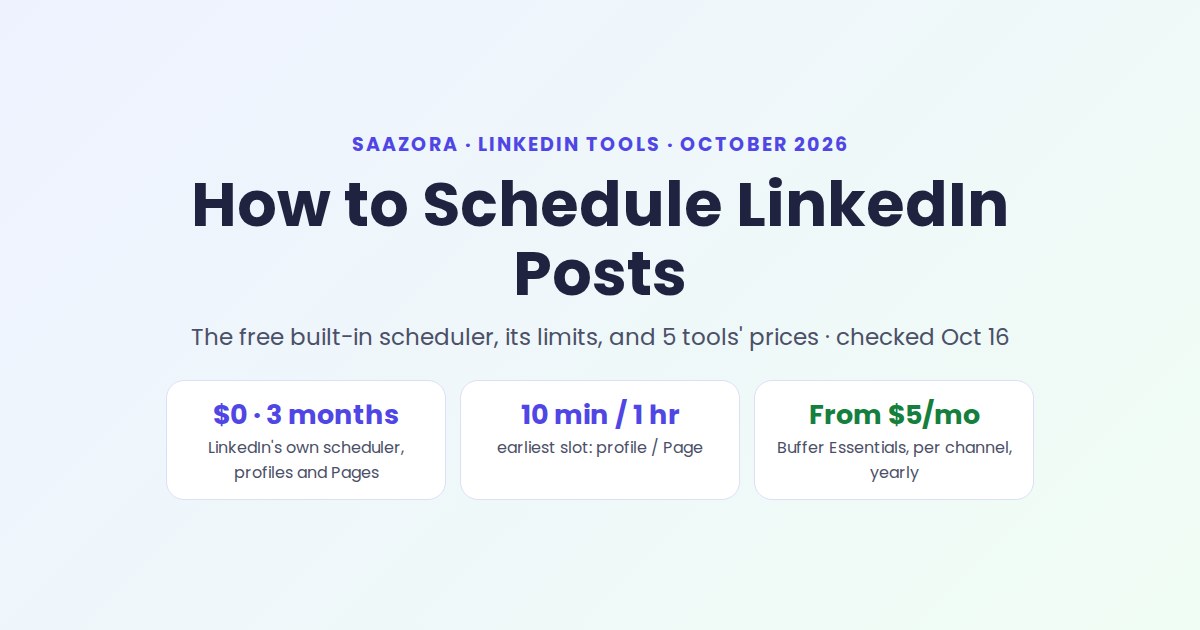
How to schedule LinkedIn posts for free: write your post as usual, click the Clock icon in the post box, pick a date and time, then click Next and Schedule. LinkedIn's own scheduler is free for every member, works on desktop and in the app, and lets you schedule a post from 10 minutes to 3 months ahead. A paid tool only earns its place if you need something the native scheduler leaves out, such as a posting queue, a scheduled first comment or several profiles in one calendar.
This guide covers the free route step by step, the limits LinkedIn's Help Center lists for profiles and Pages, and what five scheduling tools cost on October 16, 2026. More tools are on our guide to LinkedIn tools for creators and teams.
How to schedule LinkedIn posts with the free built-in scheduler
On desktop, the steps from LinkedIn's Help page are:
- Click Start a post at the top of your LinkedIn homepage.
- Write your post in the "What do you want to talk about?" field and add any media.
- Click the Clock icon in the lower-right corner of the post window.
- Pick a date and time. You can choose a 30-minute slot from the dropdown or type an exact time, such as 8:05.
- Click Next. The scheduled date and time now show above your post.
- Click Schedule. A confirmation appears in the lower left of the page.
In the LinkedIn app, tap Post in the navigation bar, write your post, tap the Clock icon in the upper-right corner, choose the date and time, then tap Next and Schedule.
Changed your mind? Click Edit next to the time, then Clear time, and post it now instead.
Articles have their own button. In the article editor, the Clock icon sits next to Publish, and the Page version of LinkedIn's help covers newsletter articles too.
Where to see scheduled posts on LinkedIn
Scheduled posts live inside the post composer, not on your profile. To find them:
- Click Start a post. If you have posts waiting, the Clock icon carries a badge with the number of scheduled posts.
- Click the Clock icon, then View all scheduled posts in the lower-left corner of the Schedule window. In the app, tap the Clock icon, then View all.
- On the Scheduled posts page, click a post to preview it. Use the More icon to choose Modify schedule or Edit post, or the Delete icon to remove it.
LinkedIn's Help page lists the composer as the one place to manage scheduled posts, so look there rather than on your profile if you can't find one.
LinkedIn's scheduling limits for profiles and Pages
LinkedIn publishes different rules for personal profiles and Company Pages. Both cap the window at 3 months, but the shortest lead time and the list of blocked post types differ.
| Rule (LinkedIn Help, October 16, 2026) | Personal profile | LinkedIn Page |
|---|---|---|
| Earliest you can schedule | 10 minutes from now | 1 hour from now |
| Furthest ahead | 3 months | 3 months |
| Who can schedule | You | Super admins and content admins |
| Post types you can't schedule | Events, jobs | Events, multiple photos, reshares, polls, jobs, service posts |
| Time zone | Converted to UTC from your device's time zone settings | Based on your location |
| Where to manage | Composer, Clock icon, View all scheduled posts | Page admin view, Page posts, Clock icon, View all scheduled posts |
| Cap on number of scheduled posts | None stated | None stated |
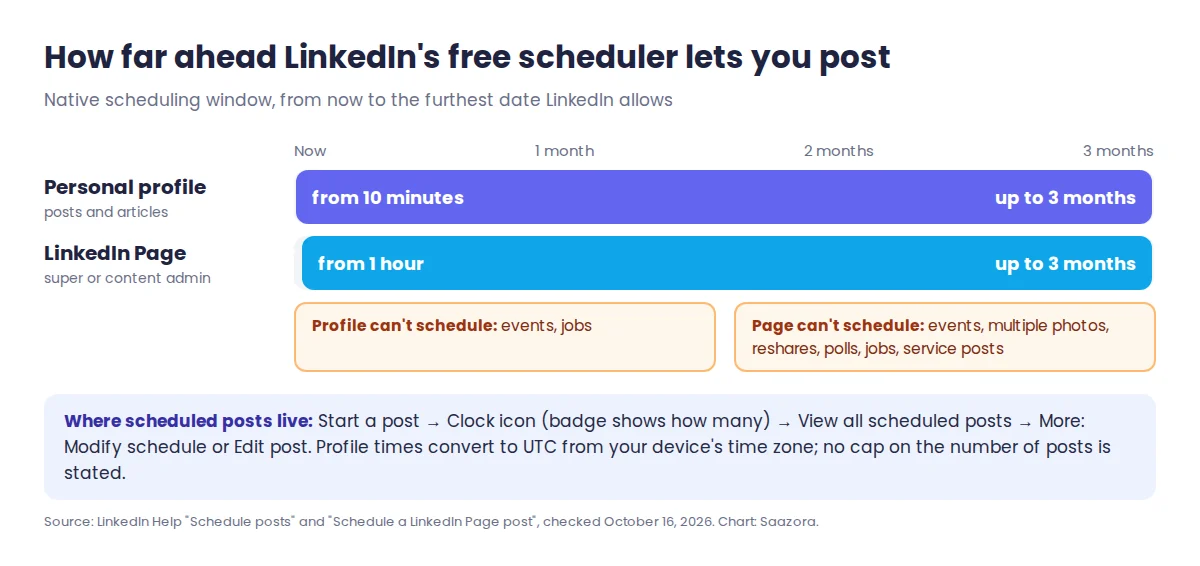
Three Page rules are worth knowing if you share admin duties. Every admin can view, edit, reschedule and delete posts scheduled by other admins. A scheduled Page post also offers Post now if news breaks early. And if an admin is removed, their scheduled posts move to the admin who removed them, so nothing is lost when someone leaves. One limit for advertisers: you can't promote a scheduled post through Campaign Manager's "Browse existing content" until it is live.
What the Help pages do not mention at all: a recurring queue (set slots once, drop posts in), scheduling a first comment, or one calendar across several people's profiles. Those are the gaps paid tools fill.
Free options compared: how many weeks of posts each one holds
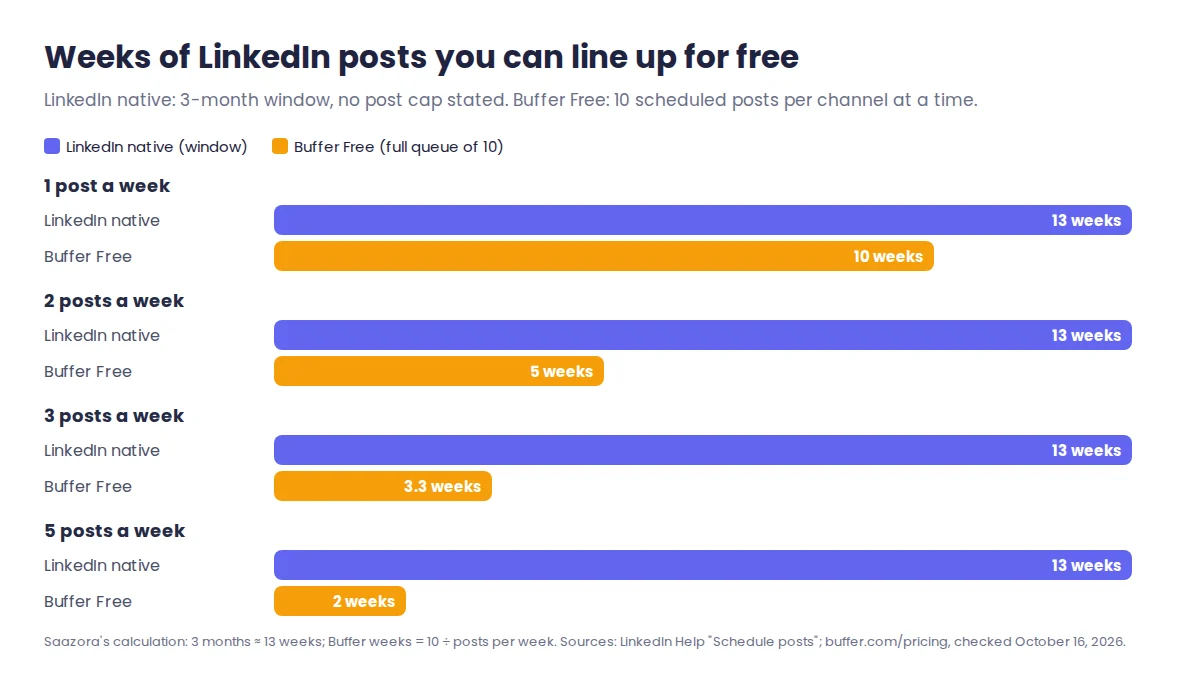
"Free" covers two different limits. LinkedIn limits time (3 months), while Buffer's free plan limits count: 10 scheduled posts per channel at any one time, refilled as each one publishes. Which limit bites first depends on how often you post.
| Posts per week | LinkedIn native: posts that fit in the 3-month window | Buffer Free: weeks a full queue of 10 lasts | Refill Buffer every |
|---|---|---|---|
| 1 | About 13 | 10 weeks | 10 weeks |
| 2 | About 26 | 5 weeks | 5 weeks |
| 3 | About 39 | 3.3 weeks | 3 weeks |
| 5 | About 65 | 2 weeks | 2 weeks |
The math: 3 months is about 13 weeks, so the native column is posts per week × 13, with no post cap stated by LinkedIn. Buffer's column is 10 ÷ posts per week. If you post three times a week, Buffer Free needs topping up about every three weeks, while LinkedIn's own scheduler holds a full quarter. Buffer Free wins on another axis: one queue for up to 3 channels, so a personal profile and a Company Page count as 2 of your 3.
LinkedIn scheduling tools and their prices (checked October 16, 2026)
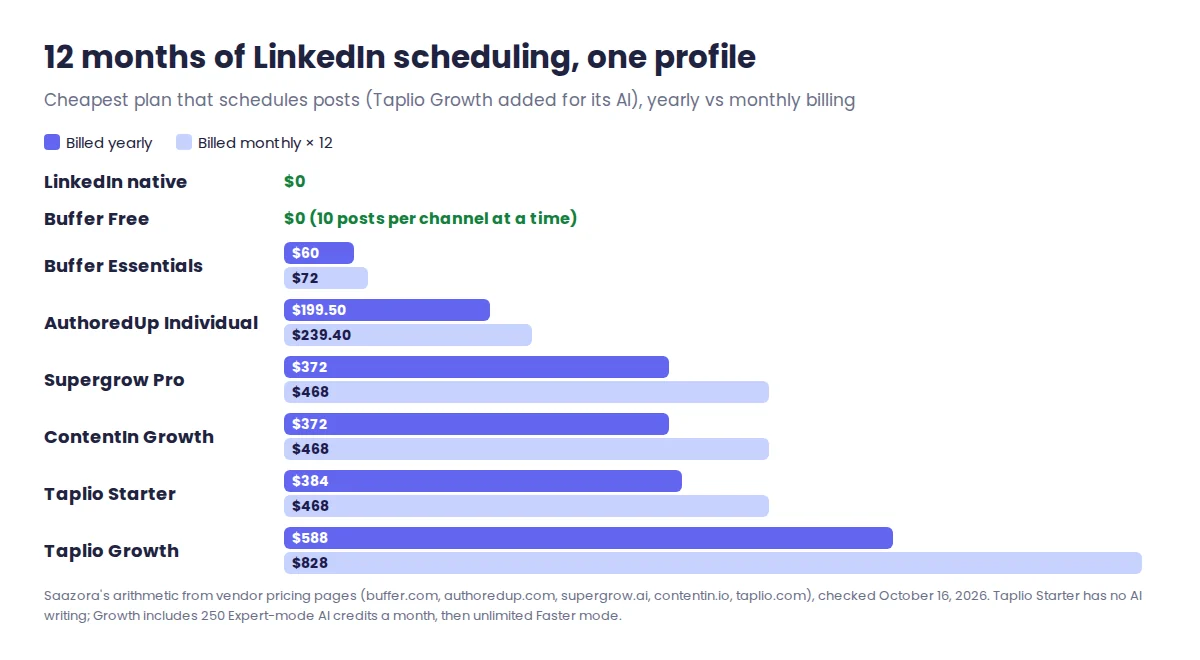
Prices are from each vendor's own pricing page today, for one LinkedIn profile, on the cheapest plan that schedules posts.
| Tool and plan | Billed monthly | Per month, billed yearly | Try it free | Scheduling extras the vendor lists |
|---|---|---|---|---|
| LinkedIn native | $0 | $0 | Built in | 10 min to 3 months ahead, edit and reschedule |
| Buffer Free | $0 | $0 | Free plan, 3 channels | Queue and calendar, 10 scheduled posts per channel |
| Buffer Essentials | $6 per channel | $5 per channel | 14-day trial | Unlimited scheduled posts, first comment scheduling |
| AuthoredUp Individual | $19.95 | $16.63 ($199.50 a year) | Free trial, no card | Calendar, reminders, company pages and groups at no extra charge; scheduling runs through its Chrome extension |
| Supergrow Pro | $39 | $31 | 7-day trial, account pauses if you don't pick a plan | Calendar, auto first-comment, official LinkedIn API |
| ContentIn Growth | $39 | $31 | 7-day trial, card required | Unlimited scheduling for one personal profile, scheduled first comments, official LinkedIn API |
| Taplio Starter | $39 | $32 ($384 a year) | 7-day trial with Pro access | Posting schedule with a queue, auto-comment on your own post from a keyword |
Buffer: cheapest way past the free limits
Buffer bills per channel. Essentials is $6 a channel per month, or $5 on yearly billing, and removes the 10-post cap. Scheduling the first comment, where many people put their link, is a paid feature: the free plan doesn't include it. A profile plus a Company Page on Essentials is 2 channels, so $10 a month on yearly billing. Best for people who post the same idea to LinkedIn and other networks, because one queue covers them all.
AuthoredUp: a calendar for hand-written posts
AuthoredUp Individual costs $19.95 a month, or $16.63 on yearly billing. Its calendar shows posts across your profile, the company pages you admin and LinkedIn groups, and company pages carry no extra charge on any plan. The pricing page says scheduling "runs through the extension", so plan on keeping its Chrome extension installed. Its AI writer, Coauthor, is still in closed beta. Best for writers who want formatting, previews and analytics around the scheduler, not AI drafts. Our AuthoredUp vs Taplio breakdown compares the two on editing and analytics.
Supergrow and ContentIn: scheduling bundled with an AI writer
Both cost $39 a month or $31 on yearly billing, and both say on their pricing pages that they publish through LinkedIn's official API. Supergrow Pro adds an auto first-comment and unlimited AI interviews that turn a conversation into posts. ContentIn Growth gives unlimited scheduling for one personal profile and scheduled first comments; company pages need Pro, at $59 or $48 yearly. Best for people who struggle to write the posts, not to schedule them.
Taplio: a queue plus an inspiration library
Taplio's Starter plan ($39, or $32 yearly) is its scheduling tier: define your posting slots once and add posts to the queue, plus analytics. It has no AI writing. AI starts on Growth ($69, or $49 yearly), which includes 250 Expert-mode AI credits a month; once they run out, Taplio's help center says you switch automatically to unlimited Faster mode. Every trial gives 7 days of Pro access and the pricing page adds a 30-day money-back guarantee. If you want to see the queue next to Taplio's viral-post library, try Taplio free for 7 days (affiliate link). Taplio's plan-by-plan credits are covered in our Taplio Starter, Growth and Pro cost breakdown, and its risks in the Taplio review with account-safety notes.
Prices change: we log every LinkedIn tool's plans each month in the month-by-month LinkedIn tool price log.
Free scheduler or paid tool? Match the route to your week
- You post 1 to 3 times a week from your own profile: LinkedIn's native scheduler. It is free, holds about a quarter of posts, and nothing touches your account from outside LinkedIn.
- You run a profile plus a Company Page, or post to other networks too: Buffer Free, then Essentials when 10 posts per channel feels tight.
- You want your link in a first comment, posted automatically: Buffer Essentials, Supergrow, ContentIn or Taplio's auto-comment. LinkedIn's Help pages don't mention first-comment scheduling.
- You manage several people's profiles: a team plan. Supergrow Teams covers 5 accounts for $199 a month ($189 yearly), and AuthoredUp Business is $14.95 per profile ($12.46 yearly) with a 3-profile minimum.
- You need help writing, not scheduling: pick by the AI writer first. Our scored list of tools that replace Taplio ranks them on price, AI writing and trial terms.
Whichever tool you choose, check how it publishes. LinkedIn's rules prohibit third-party software, "including 'crawlers', bots, browser plug-ins, or browser extensions" that automate activity on its website, and members using them "risk having their accounts restricted or shut down". Scheduling itself is fine; auto-DMs, auto-connect requests and auto-likes are where tools cross that line. Taplio's Pro plan, for example, lists automatic DMs to people engaging with your posts.
Three scheduling mistakes the Help pages hint at
- Scheduling while travelling. LinkedIn converts profile post times to UTC from your device's time zone settings. Our reading: if your laptop is still set to the time zone you just left, the time you pick is that zone's time. Check the time shown above the post before clicking Schedule.
- Scheduling a poll or carousel of photos for a Page. Pages can't schedule polls, multiple photos, reshares, events, jobs or service posts. Build those as drafts and post them by hand at the time you wanted.
- Leaving a launch post with the person who wrote it. On a Page, any admin can see and change scheduled posts, and posts move to whoever removes a departing admin. Agree who owns the queue so two people don't edit the same post.
Questions about scheduling LinkedIn posts
Is scheduling LinkedIn posts free?
Yes. LinkedIn's built-in scheduler costs nothing on any account, for profiles and for Pages. Buffer's free plan also schedules LinkedIn posts, up to 10 at a time per channel on 3 channels.
How far in advance can you schedule a LinkedIn post?
Up to 3 months ahead, on both profiles and Pages. The earliest slot is 10 minutes from now on a profile and 1 hour from now on a Page.
Does a scheduled post get less reach than one posted live?
LinkedIn's Help pages say nothing about reach for scheduled posts, and we found no LinkedIn statement that it treats them differently. What you control either way is being around to reply to comments once it goes live.
How this guide was researched
For this guide on how to schedule LinkedIn posts, every step, limit and button name was read on October 16, 2026 in LinkedIn's Help Center. Tool prices, trials and features were read the same day on each vendor's pricing page, using the figures shown for yearly billing where a switch hides them. The weeks-of-posts and 12-month cost tables are our own arithmetic on those numbers. This is a research-based guide; we did not schedule posts in each tool for it and had no vendor account. Typefully was left out because its pricing page did not show plan prices to our fetch. If you settle on Taplio, the current Taplio trial and discount offer lists what is running now. Read how Saazora researches software.
Sources (checked October 16, 2026): LinkedIn Help: Schedule posts, LinkedIn Help: Schedule a LinkedIn Page post, LinkedIn Help: Scheduled posts for LinkedIn Pages, LinkedIn Help: Write and publish articles, LinkedIn Help: Prohibited software, Buffer pricing, AuthoredUp pricing, Supergrow pricing, ContentIn pricing. Taplio plan prices are from Taplio's pricing page, and AI credits from the "Credits explained" article in Taplio's help center.
Research-based guide: no vendor paid for, supplied an account for, or reviewed this article.